
Developer
  • Getting started keyboard_arrow_down

    Discover

    • arrow_forward
      EV Charging

      Discover our unattended POS solution for the ev market

    Our solutions

    • arrow_forward
      CCV Terminal

      Integrate with a CCV Terminal

    • arrow_forward
      SoftPOS

      Turn your own device into a payment terminal

    • arrow_forward
      CCV Online Payments

      Accepting online payments in your platform without technical knowledge

    • arrow_forward

    • arrow_forward

    Connect to the CCV Platform

    Integrate our products into your software. Let's make payment happen together!

    Look at all the possibilities
  • Documentation
menu
    • expand_more Payment API
      • expand_more General
        • Communication
        • Environments
        • Authentication
        • Idempotency
        • Transaction Types
        • Webhooks
        • Notifications
        • Error Handling
        • Security & Privacy
        • Return URL
      • expand_more Online Payments
        • expand_more Quick Start
          • Initial Setup
          • Create Payment
        • expand_more Basic Operations
          • Create A Payment
          • Refund A Payment
          • Authorise & Capture Payments
          • Cancel A Payment
          • Query The Payment Status
          • Query Merchant Balance
        • expand_more Payment Features
          • expand_more 3D-Secure 2
            • SCA And 3D-Secure 2
            • Compliance Guide
            • Out Of Scope Transactions
            • Exemptions
          • Payment Links
          • Merchant And Customer Initiated Payments
          • Deferred Sales
          • Embedded Card Payments
          • Mandates
          • PAN/IBAN Tokens
          • Secure Vault
          • Customers & Loyalty
          • Partial Payment
          • Void Payments
        • expand_more Payment Methods
          • American Express
          • Apple Pay
          • Google Pay
          • expand_more Bancontact
            • Bancontact Mobile PCI Payments
            • Bancontact Walled Initiated Payments (WIP)
            • Bancontact Deferred Sales
          • Bancontact Mobile
          • Banktransfer
          • IDEAL
          • Klarna
          • Landingpage
          • Maestro
          • Mastercard
          • Paypal
          • SoftPos
          • Terminal
          • Visa
        • expand_more Payouts
          • Split Payout
          • Test Payout
        • expand_more Developer Resources
          • Sequence Info
          • Currencies
          • Languages
          • Payment Testing
          • Test Cards
      • expand_more In-person Payments
        • expand_more SoftPOS
          • expand_more General
            • Getting Started
            • Device Requirements
            • SoftPOS TerminalIds
            • SoftPOS Errors
            • Currencies
            • Languages
            • Network And Connectivity
            • European Accessibility Act
            • Release Notes
          • expand_more Basic Operations
            • Install A Terminal
            • Make A Payment
            • Check Terminal Status
            • expand_more Refund A Payment
              • Card Present Refund
              • Card Not Present Refund
            • Handling Receipts
          • expand_more API Reference
            • SoftPOS - API Reference
    • expand_more Board Your Merchants At CCV
      • expand_more General
        • Getting Started
        • Authentication
      • expand_more Boarding API
        • StartOrder
        • AddSalesPackage
        • AddProductPSPStandalone
        • AddProductPSPSubmerchant
        • AddTerminalPackage
        • SetShoppingCartPricingDetails
        • SubmitOrder
        • Boarding
      • API Reference
    • Android App Requirements
    • expand_more Android SDK
      • expand_more General
        • Getting Started
        • Demo Application - Android SDK
        • Result States
        • Language Codes
        • Error Handling
        • Logging
        • EP2
        • Download SDK
        • Release Notes
      • expand_more Basic Operations
        • Make A Payment
        • Stop Ongoing Payment
        • Recover A Payment - Android SDK
      • expand_more Payment Features
        • Account Selection - Android SDK
        • Additional Receipt Text - Android SDK
        • Allow Or Deny Card Brands - Android SDK
        • Authorisation By Voice - Android SDK
        • Authorise - Android SDK
        • Capture - Android SDK
        • Card Detection - Android SDK
        • Card Detection Deprecated - Android SDK
        • Card Token - Android SDK
        • Card Validation - Android SDK
        • Customer Display - Android SDK
        • E-Receipt - Android SDK
        • Manual Card Information Entry - Android SDK
        • Payment Reversal - Android SDK
        • Partial Approval - Android SDK
        • Refund - Android SDK
        • Request Transaction Information - Android SDK
        • Voucher Transactions - Android SDK
        • Reservation - Android SDK
        • Account Verification - Android SDK
        • German Eichrecht - Android SDK
      • expand_more SDK Guides
        • Activate Terminal - Android SDK
        • Login - Android SDK
        • Card Circuits - Android SDK
        • Card Reader Status - Android SDK
        • GetStatus - Android SDK
        • Card Reader Status - Android SDK
        • Check Password - Android SDK
        • Repeat Last Service Message - Android SDK
        • Elme Execute Cron Jobs - Android SDK
        • Factory Reset - Android SDK
        • Get Config - Android SDK
        • Mobile Phone Prepaid - Android SDK
        • Online Agent - Android SDK
        • Partial Period Closing - Android SDK
        • Period Closing - Android SDK
        • Possible Transaction Types - Android SDK
        • Retrieve Last Ticket - Android SDK
        • Retrieve Open Pre Authorisations - Android SDK
        • ShowSales - Android SDK
        • Startup - Android SDK
        • Taxfree - Android SDK
        • Terminal Administration - Android SDK
        • Terminal Discovery - Android SDK
        • Ticket Reprint Period Closing - Android SDK
        • Transaction Overview - Android SDK
        • Check Password - Android SDK
      • expand_more Hardware Access
        • Getting Started
        • NFC - Android SDK
        • Printing - Android SDK
        • QR And Barcode Scanner - Android SDK
        • Terminal Reboot - Android SDK
      • expand_more API Reference
        • API Documentation
    • expand_less OCPI Server Documentation
      • expand_less OCPI Server Integration
        • Introduction
        • OCPI Requirements
        • Architecture
        • Terminal Integration
        • Reservation Behavior
      • expand_more Release Notes
        • Charge App Release Notes
        • OCPI Server Release Notes
    • expand_more Certification
      • Introduction
      • expand_more Attended Certification Tests
        • expand_more Aborting
          • F1A - Regular Abort By Merchant
          • F1B - Failing Abort By Merchant
          • F1D - Hammering Abort By Merchant
        • expand_more Allowed Amounts
          • S1A - Transaction With Amount Of EUR 0,00
          • S1B - Transaction With Negative Amount
          • S1C - Transaction With Highest Possible Amount
          • S1D - Over-Amount Transaction
        • expand_more Connection Lost
          • Q1B - Manual Transaction Recovery
          • Q1C - Ethernet Connection With ITS Fails
          • Q1F - Device Unavailable
          • Q1G - Terminal Not Responding
          • T1A - Automatic Transaction Recovery
        • expand_more E Journal
          • M1A - Store E-Journal
          • M2A - ECR/POS Print Journal Receipts
          • M3A - ECR/POS Storing Journal Receipts
        • expand_more Reprint Ticket
          • L1A - Reprint Ticket
          • L1B - Reprint Ticket Declined Transaction
          • L2A - Reprint Ticket No Printer Available
          • L2B - Reprint Ticket Declined Transaction No Printer Available
        • expand_more Tickets
          • U1A - Request For Identification
          • U1B - Request For Signature
          • U1C - Request For Signature And Identification
          • U1D - Failing Transaction No Receipt
          • U1E - Split Payment
        • expand_more Time Out
          • R1A - Time Out On Presenting A Card
          • R1B - Time Out During Pin Entry
        • expand_more Transactions
          • C1A - Happy Flow
          • C1B - Happy Flow Contactless
          • C1D - Happy Flow Magnetic Stripe
          • C1E - Declined Transaction By Host
          • C1E - Transaction Aborted By Cardholder
          • C1F - Absence Of Thousand Separator
          • C1G - Cashier Display Messages
        • expand_more Validation
          • H1A - Too Many Fingers
          • H1B - Not Removing Card
          • H2A - Power Loss Or Closing Of ECR/POS During Transaction
      • expand_more Unattended Certification Tests
        • expand_more User Guidance
          • C1 - Successful Payment
          • C2 - Next Cardholder
          • C3 - Abort On PIN Entry
          • C4 - Time Out During PIN Entry
          • C5 - No Amount Entered
          • C6 - Language Selection
          • C7 - Amount To Authorise
          • C8 - Available Funds
        • expand_more Device Selection
          • D1 - Device Selection
          • D2 - Invalid Device
          • D3 - Charger Selection Abort
          • D4 - No Charger Selected
          • D5 - Authorisation With No Free Devices
        • expand_more Product Delivery
          • E1 - Product Selection
          • E2 - Enabled Products
          • E3 - Invalid Product Entered
          • E4 - Product Selection Aborted
          • E5 - No Product Selected
          • E6 - Max Delivery Time
          • E7 - Abort Session
          • E7 - Abort By POS
          • E9 - Not Started Charging In Time
          • E10 - Take More Fuel Than AVF
          • E10 - Multiple Sessions Mixed
          • E12 - Postpone Card Financial Advice On New Cardholder Card
          • E13 - Abort Session On Card Reinsert
        • expand_more Receipts
          • F1 - Cardholder Retrieve Receipt Info
          • F2 - Cardholder Receipt Retrieval
          • F3 - Reprint Ticket
          • F4 - F8 - Ticket Printing And Content
          • F9 - TrackingToken Deleted
          • F10 - Printer Paper Low
          • F11 - CardPayment Erased From Storage
          • F12 - E-Receipt Received By Cardholder
          • F13 - E-Receipt Failure
        • expand_more Transaction Limit Handeling Maestro
          • G1 - Maestro CardPayment 1 Euro
          • G2 - Maestro CardPayment 30 Euro
          • G3 - Maestro CardPayment 60 Euro
          • G4 - Maestro CardPayment 500 Euro
        • expand_more Transaction Limit Handeling Mastercard
          • H1 - Mastercard CardPayment 1 Euro
          • H2 - Mastercard CardPayment 30 Euro
          • H3 - Mastercard CardPayment 60 Euro
          • H4 - Mastercard CardPayment 500 Euro
        • expand_more Mifare Handling
          • I1 - Happy Flow Mifare
          • I2 - Unknown Mifare Card
          • I3 - No Mifare Card Presented
          • I4 - Mastercard Presented
        • expand_more Card Circuits
          • L1 - Available Card Circuits
        • expand_more Reconciliation
          • M1 - Reconciliation As Function
          • M2 - Reconciliation By New Shiftnumber
          • M3 - POS Auto Triggers Reconciliation With Closure
        • expand_more Journal
          • N1 - Journal Accessible By Authorized Employees
          • N2 - Journal Cannot Be Altered
        • expand_more Exception Flows
          • O1 - Unknown Card Session
          • O2 - Maximum Time Out
          • O3 - Device Unavailable
          • O4 - Time Out Card-Type Fallback
          • O5 - Time Out On Presenting Card
          • O6 - App Stability
          • O7 - Automatic Startup
          • O8 - Sleep Mode Not Supported
          • O8 - Sleep Mode Supported
        • expand_more Recovery
          • X1 - Recovery After Communication Failure
          • X2 - Recovery After CCV Component Update
          • X3 - Recovery After 24 Hour Reboot
          • X4 - Recovery After CCV-Fusion Client Restart
          • Y1 - Recovery After Power Failure With No Battery Backup
          • Y2 - Recovery After Power Failure With Battery Backup
      • expand_more SoftPOS Certification Tests
        • expand_more Success Scenarios
          • Installation Success - SoftPOS Certification Test
          • Payment Success - SoftPOS Certification Test
        • expand_more Failed Scenarios
          • Installation Failed - CCV SoftPOS App Not Installed - SoftPOS Certification Test
          • Payment Failed - Declined - SoftPOS Certification Test
          • Payment Failed - CCV SoftPOS App Is Closed During Payment - SoftPOS Certification Test
          • Payment Failed -CCV SoftPOS App Is Killed During Payment - SoftPOS Certification Test
          • Payment Failed - SoftPOS App Not Installed Anymore - SoftPOS Certification Test
        • expand_more Other Scenarios
          • Other Scenario - Data Cleared Of The CCV SoftPOS App - SoftPOS Certification Test
    • expand_more Development Kits
      • SoftPOS Dev Kit
      • IM30 Dev Kit
    • Glossary
Return to solutions

  • Ocpi integration expand_more
    • Introduction
    • Ocpi requirements
    • Architecture
    • Terminal integration
    • Reservations
  • Release notes expand_more
    • CCV Charge App Release notes
    • OCPI Server Release notes

What's on this page

  • Linking charging stations
  • Charger name
  • Connectors
  • Tariffs
    • Supported Tariff Components
    • Tariff Types
    • Custom Tariff Text
  • Reservation
  • Invoice creation
    • Eichrecht data (Germany specific)
  • Stop charging
  • Settlement
  • Payment receipt flow
OCPI Server Integration / Terminal Integration

Linking charging stations

A terminal can be linked to a charging station through the OCPI connection during the creation of a terminal object in the Payments module. Afterwards, this link can be updating by updating the terminal object in question. The terminal can be linked to multiple EVSE’s or Locations. This will make all EVSE’s that are directly linked to the terminal and/or all EVSE’s that are linked to a location that is directly linked to a terminal available.

  • An EVSE will only me shown on the terminal if its status is set to “AVAILABLE”.
  • The value of the “reference” parameter should be set to the terminal TID.
  • Make sure that the “las_updated” parameter is correctly set in order to include any changes in the next OCPI-sync.

Example:

{
  "address": "Westervoortsedijk 55",
  "city": "Arnhem",
  "location_ids": [
    "df37373d-1669-4127-a6ac-d86750095119",
    "a06dc823-3e5a-40c8-89cf-1b5b9e941412",
    "55719888-ed09-4cca-82cc-803bdb77bf26"
  ],
  "evse_uids": [
    "25a2c4ab-2251-325c-fab1-554aa1c55421"
  ],
  "reference": "12345678",
  "last_updated": "2026-03-23T17:16:15Z"
}
Cloud Connect EVC Chargers

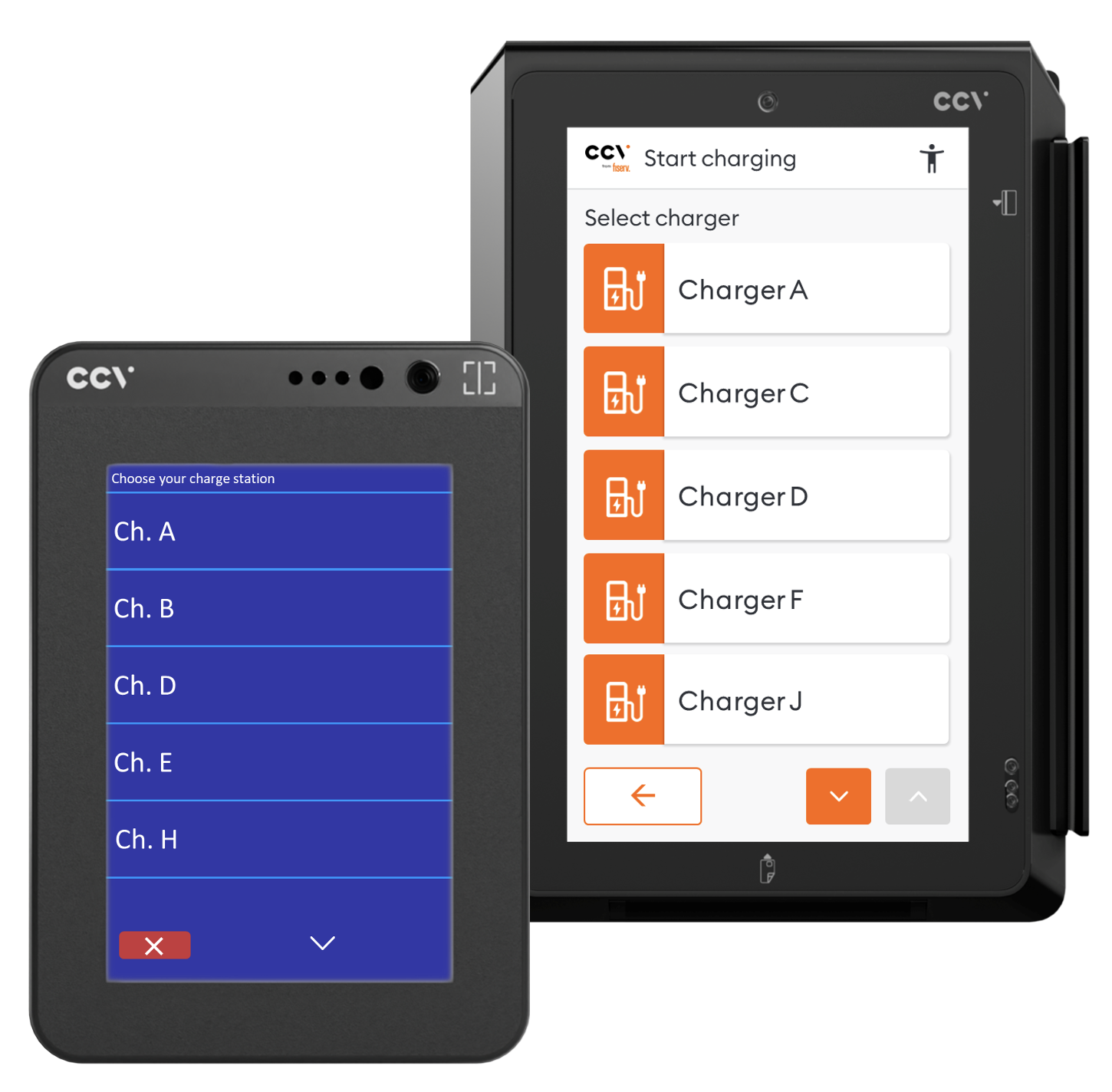
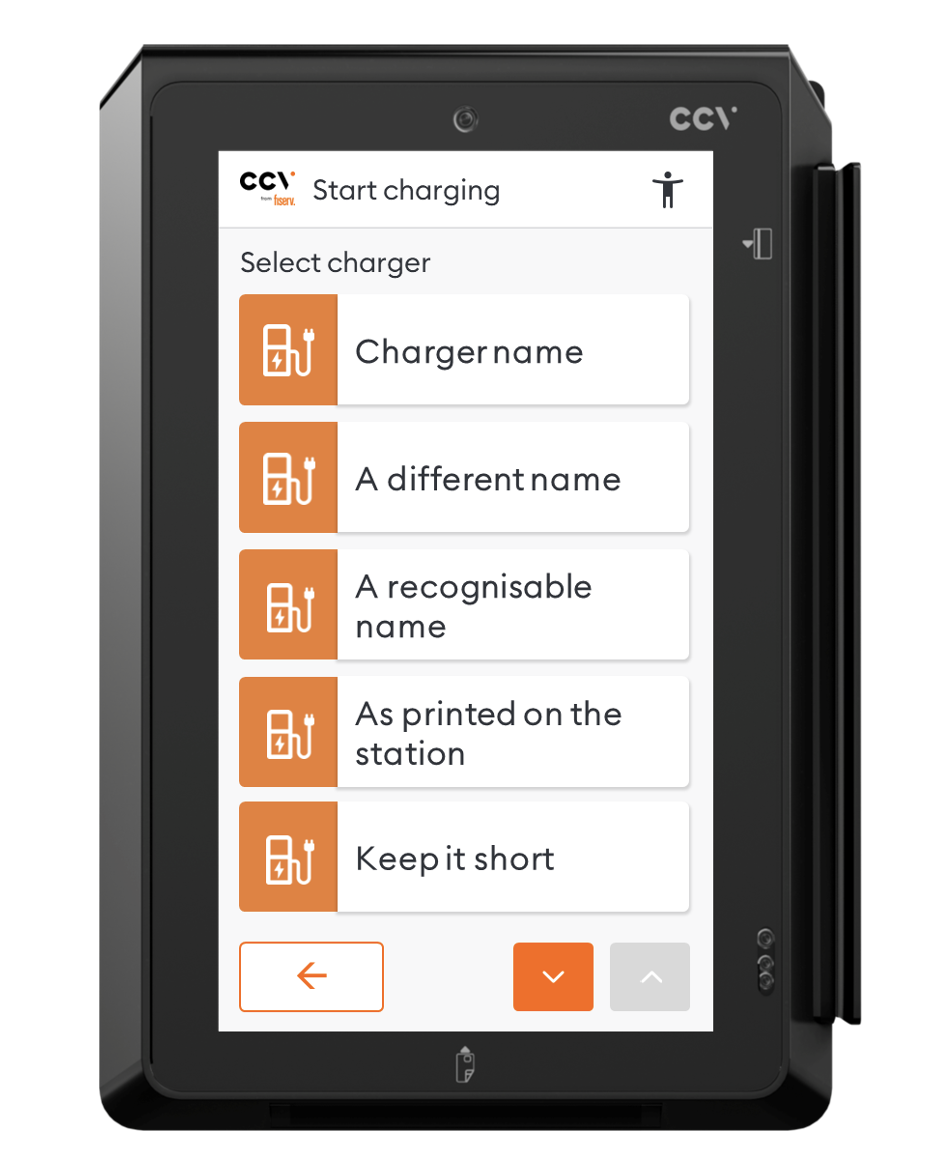
Charger name

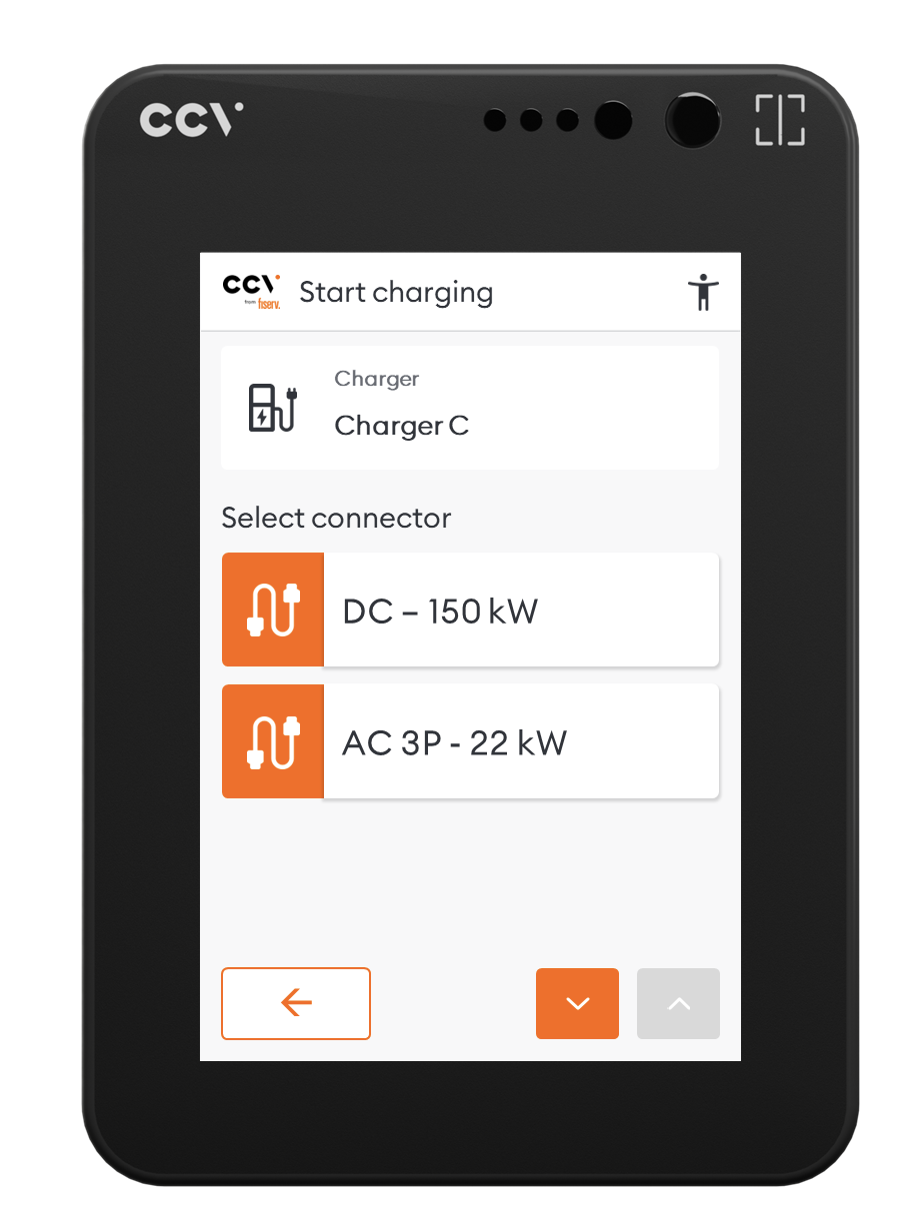
The names as they appear on the payment terminal are defined in the locations module:

Example:

{
  "uid": "2421",
  "evse_id": "NL*CCV*100561003",
  "connectors": [
    {}
  ],
  "physical_reference": "Charger name",
  "last_updated": "2026-03-23T12:39:09Z"
}
Cloud Connect EVC Chargers

Connectors

The connector names are generated automatically based on the following connector parameters:

  • “power_type”
  • “max_voltage”
  • “max_amperage”
  • “max_electric_power”

Example:

{
  "uid": "2421",
  "evse_id": "NL*CCV*100561003",
  "connectors": [
    {
      "id": "1",
      "power_type": "DC",
      "max_voltage": 920,
      "max_amperage": 400,
      "max_electric_power": 150000,
      "last_updated": "2026-03-23T08:12:01Z"
    }
  ]
}
Cloud Connect EVC Chargers

Tariffs

Supported Tariff Components

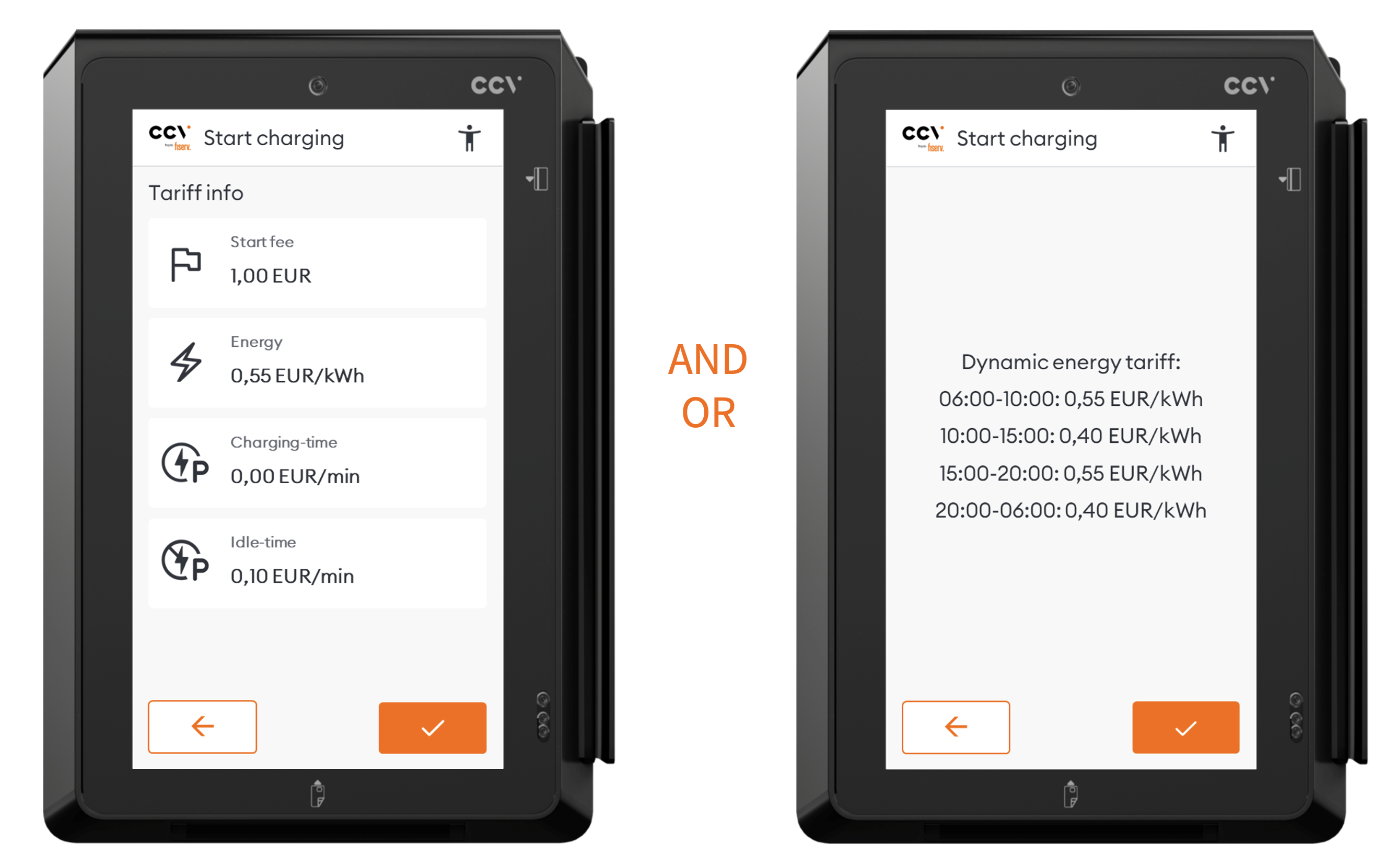
The following tariff values will be displayed on our terminal when the user is initializing a new charging session:

  • FLAT
  • ENERGY
  • TIME
  • PARKING_TIME

Tariff Types

Tariff objects need to have the “AD_HOC_PAYMENT” tariff type in order to be applicable for the CCV Cloud Connect server. Additionally, the “REGULAR” tariff type is also supported.

Preferred:

{
  "type": "AD_HOC_PAYMENT"
}

Fallback:

{
  "type": "REGULAR"
}

Custom Tariff Text

A custom text may be shown to drivers instead of standard tariff element breakdowns. Alternatively, this custom text could also be used to give additional information to more complex tariffs. The “tariff_alt_text” field can be used for this.

Cloud Connect EVC Chargers

Example 1:

{
  "tariff_alt_text": [
    {
      "language": "en",
      "text": "Happy Easter!\n15% discount on all charging sessions."
    }
  ]
}

Example 2:

{
  "country_code": "BE",
  "party_id": "ALL",
  "type": "AD_HOC_PAYMENT",
  "tariff_alt_text": [
    {
      "language": "en",
      "text": "Happy Easter!\n15% discount on all charging\nsessions.\nAutomatically applied."
    }
  ],
  "elements": [
    {
      "price_components": [
        {
          "type": "FLAT"
        },
        {
          "type": "ENERGY"
        },
        {
          "type": "TIME"
        },
        {
          "type": "PARKING_TIME"
        }
      ]
    }
  ],
  "last_updated": "2026-03-23T11:16:55Z"
}

Reservation

Cloud Connect EVC Chargers

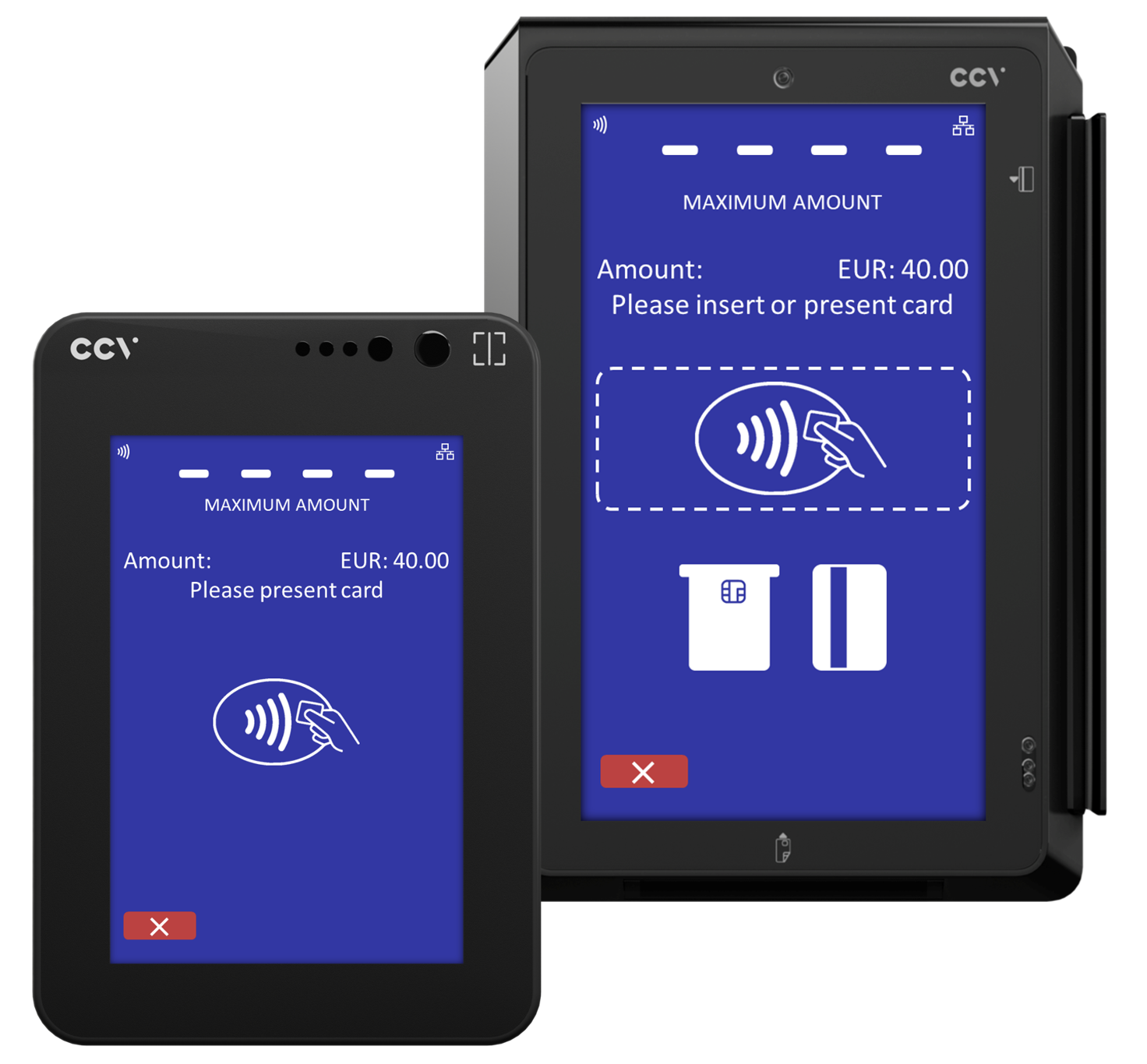
A specific amount is blocked on the EV-driver’s account to cover costs for a potential charging session.

This value must always include the VAT as well. This is the absolute maximum amount which can be booked. Any attempt to book a higher value after the session completes will be declined.

The reservation amount is set within the tariff through the “max_price.incl_vat” parameter.

{
  "country_code": "NL",
  "party_id": "ALL",
  "id": "12",
  "currency": "EUR",
  "max_price": {
    "excl_vat": 37.74,
    "incl_vat": 40.00
  },
  "type": "AD_HOC_PAYMENT",
  "elements": [
    {
      "price_components": []
    }
  ],
  "last_updated": "2026-03-23T11:16:55Z"
}

Keep in mind that in the demo environment, special reservation amount can be used to trigger specific testing scenarios

  • Any amounts with *.01 -> *.14 decimals
  • Amounts with *.50 decimals
  • Amounts with *.11 will always trigger PIN entry
Decimals Test scenario
.01 Transaction declined due to expired card
.02 Transaction declined due to invalid PIN
.05 No response on transaction request
.06 Transaction declined due to insufficient funds
.10 Transaction declined due to system malfunction
.11 Transaction declined, PIN entry required. Approve with PIN entry.
.12 Contactless transaction declined, use alternative (chip/mag-stripe)
Anything above .50 Normal behaviour

Invoice creation

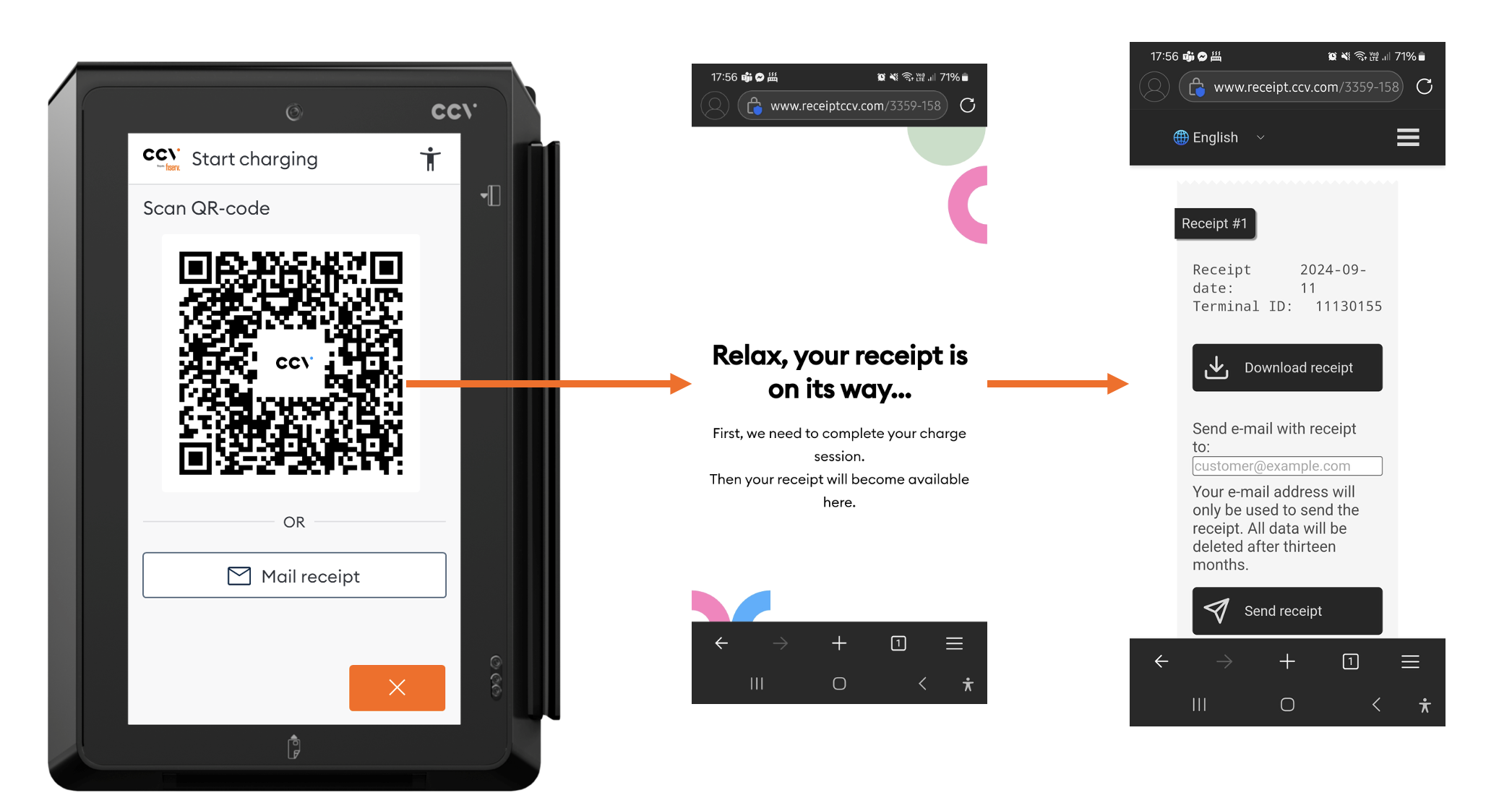
The invoice creator is defined in the terminal object, using the “invoice_creator” parameter. The link to the invoice is configured with the “invoice_base_url” parameter. In case the “invoice_creator” is set to PTP, the “invoice_base_url” will be defaulted to the base url of the CCV invoice platform. This invoice url is shown to the user through a QR code that is available when starting a new session, stopping an ongoing session and through the invoice menu on the terminal.

{
  "terminal_id": "111ac1c1-11ab-1b1a-1baa-ac111222211a",
  "customer_reference": "CPO-Reference",
  "invoice_base_url": "https://cpo-domain.com/invoices",
  "invoice_creator": "CPO",
  "location_ids": [],
  "serial_number": "12345678",
  "last_updated": "2026-03-23T17:16:15Z"
}

The final invoice url will be the combination of the “invoice_base_url” from the terminal object and the “authorization_reference” from the session object.

Example:

  • invoice_base_url: http://demo-ocpi.test.aws.ccvlabinfra.net/receipts/
  • authorization_reference: 635e1234-ca12-4123-ca12-635e12345678
  • full invoice url: http://demo-ocpi.test.aws.ccvlabinfra.net/receipts/635e1234-ca12-4123-ca12-635e12345678

During the charging session, the invoice will not be available yet. When the “invoice_creator” is set to PTP, CCV will then show a waiting page until the final invoice is available.

Cloud Connect EVC Chargers

Info

Special attention is required when choosing the right invoice provider:

  • While CCV can provide payment receipts (proof of payment) for transactions, CCV does not provide full invoices for end users.
  • CCV currently does not include fiscal information on invoices (for example Italy, Croatia, and Austria). Verify local fiscal requirements for the countries where you operate.
  • For Germany, CCV complies with Eichrecht calibration requirements and includes Eichrecht data such as the calibration token and public key with the payment receipt.
  • CCV provides two terminal platforms: acCEPT and VxTree. CCV currently provides receipts only for acCEPT-based terminals. Consult your CCV Sales representative when selecting terminals.

Eichrecht data (Germany specific)

Eichrecht calibration data for compliance with German law can be included with the CCV receipt by using the instructions in the OCPI specification.

See signed_data in the CDR object:

{
  "encoding_method": "OCMF",
  "encoding_method_version": 1,
  "public_key": "305a301406072a8...",
  "signed_values": {
    "nature": "Start",
    "plain_data": "OCMF ...",
    "signed_data": "20950120056322AA..."
  },
  "url": null
}

Info

Note: Please make sure the signed data is properly encoded as instructed in the OCPI specification or the data may not be available for the end-user: public_key in base64 encoding signed_data in base64 encoding

Example of a CCV receipt with Eichrecht calibration data included: Cloud Connect EVC Signed meter data

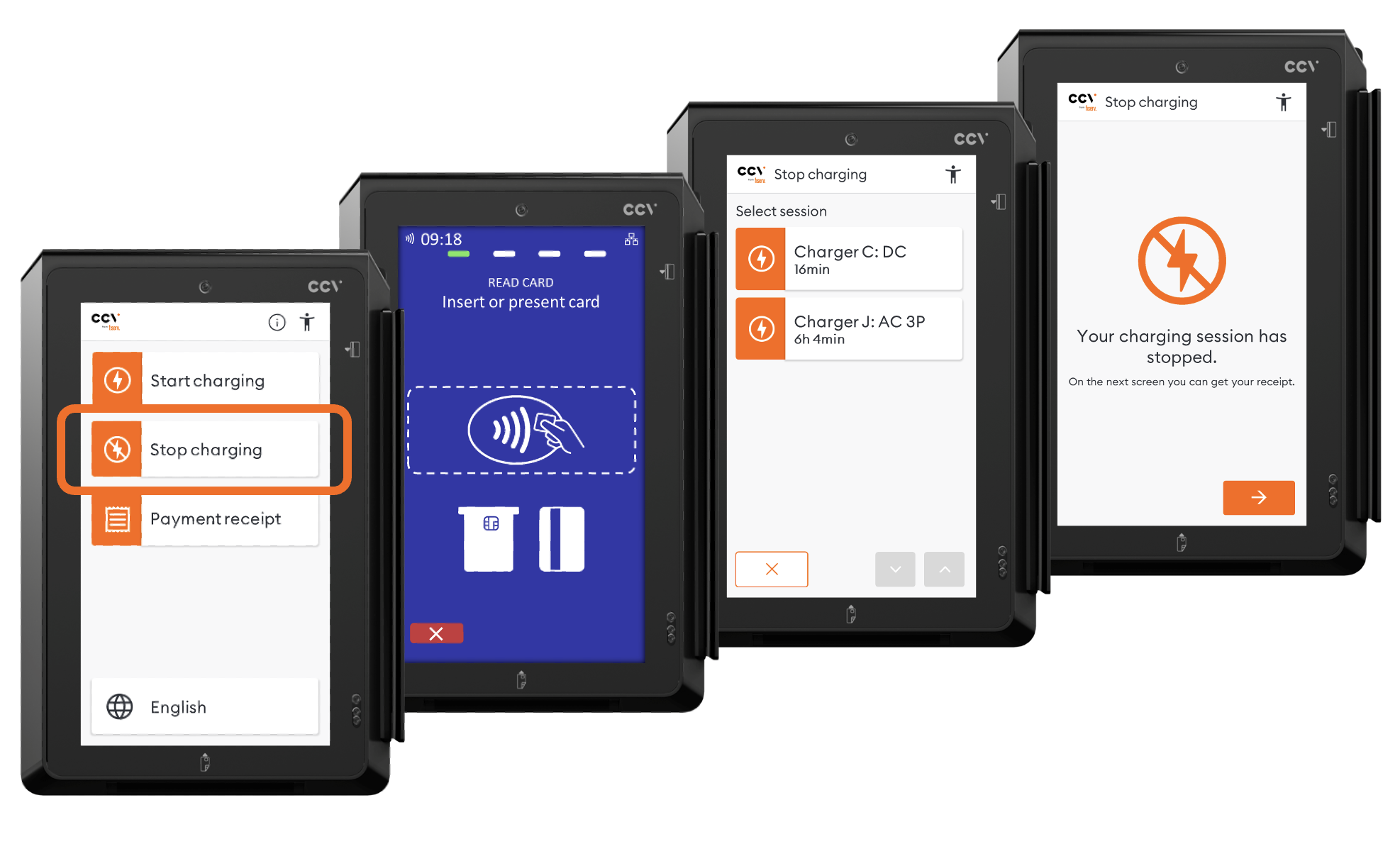
Stop charging

A charging session can be stopped in multiple ways:

  • From the car (unplug cable)
  • From the charging station
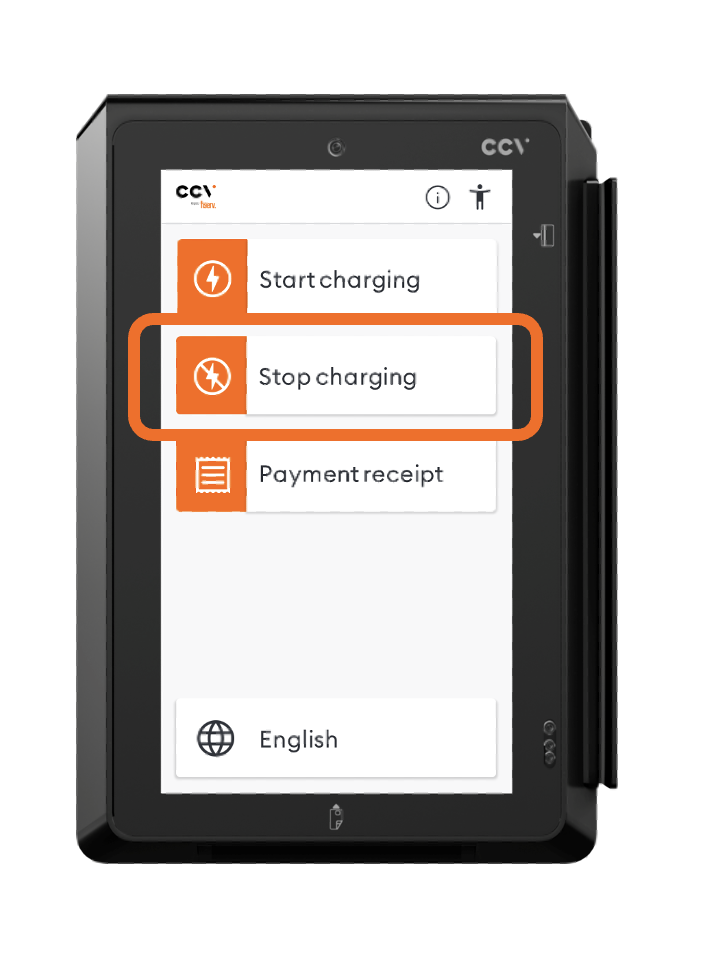
  • From the payment terminal (“Stop charging” on the home screen)
Cloud Connect EVC Signed meter data

Stop charging flow:

  • To stop a charging session from the payment terminal, the user must present their payment card to the terminal for authentication.
  • CCV then looks for active charging sessions for this card.
  • Tapping a session will send a stop session request to the CPMS.
  • After this, the user can get the link to their invoice again.
Cloud Connect EVC Signed meter data

Settlement

When a charging session is stopped, the CPMS sends the CDR to CCV with the information of the charging session and the actual costs. This is the trigger for CCV to settle the final cost.

CCV then books the actual costs with the acquiring bank for this terminal and releases the remaining amount from the reservation.

To inform the CPMS of the booking of the actual costs, CCV sends a “Financial Advice Confirmation” object to the CPMS (see Payments module). The information in the CDR and the financial advice confirmation can be used by the CPMS to create a proper invoice for the end-user.

Example of a financial advice confirmation:

{
  "id": "123abc1-12ab-1a1a-1abc-ab123456789a",
  "authorization_reference": "bb-100100-112341234",
  "total_costs": {
    "excl_vat": 11.40,
    "incl_vat": 12.60
  },
  "currency": "EUR",
  "eft_data": [
    "Mastercard",
    "AID: 1234",
    "Crypto: 3456",
    "Nr: **** **** **** 1234",
    "SEQ: 00",
    "Amount: EUR 12.60"
  ],
  "capture_status_code": "SUCCESS",
  "capture_status_message": "Capture successful at PSP",
  "last_updated": "2026-03-23T17:16:15Z"
}

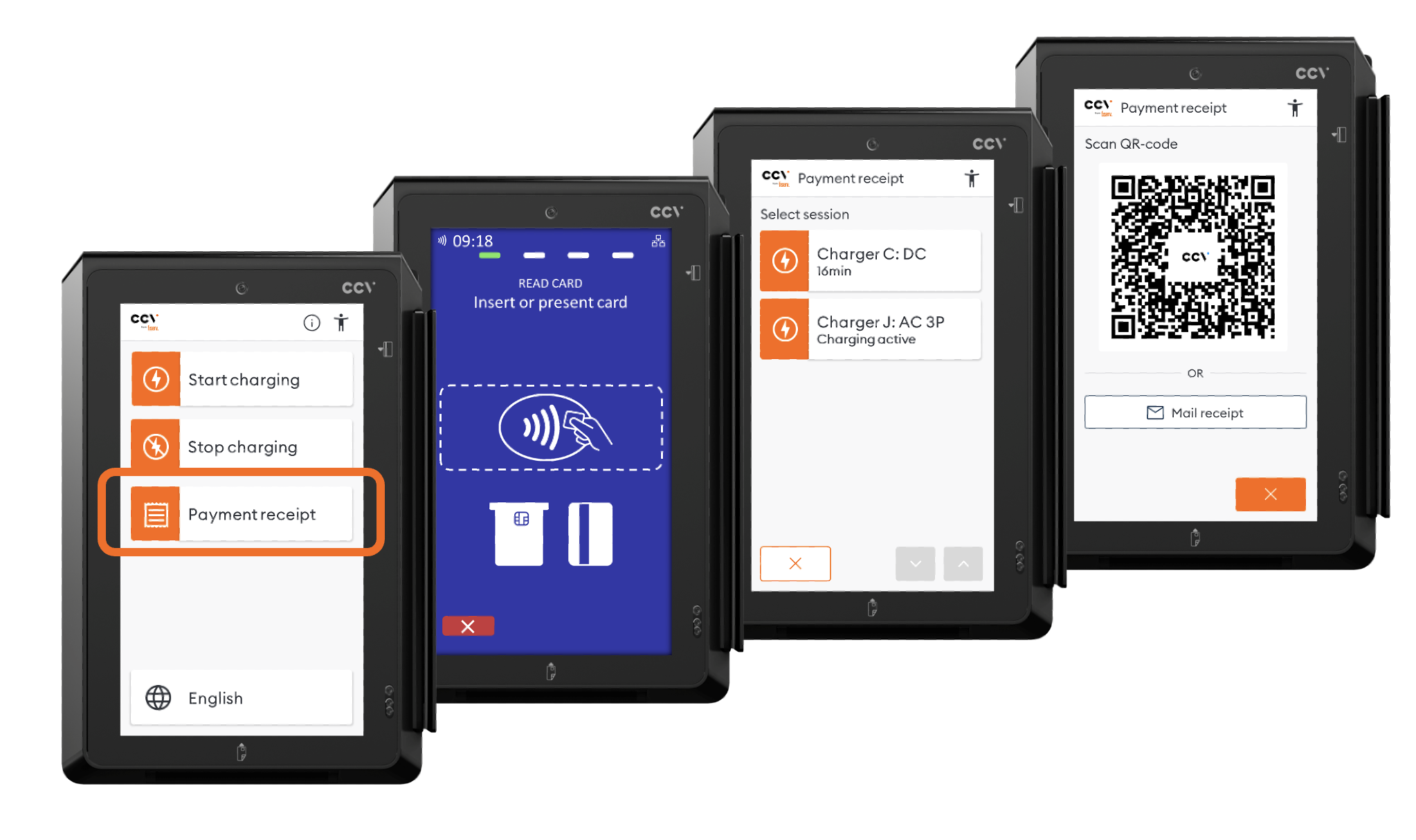
Payment receipt flow

  • Similar to “Stop charging”, the “Payment receipt” option requires authentication
  • CCV then looks for active charging sessions for this card.
  • Tapping a session will send a stop session request to the CPMS.
  • After this, the user can get the link to their invoice again.
Cloud Connect EVC Signed meter data

Info

Difference with “Stop charging”: The “Payment receipt” option will show both active and closed charging sessions from the last 48 hours.

Go to

Home
Documentation


Cookies Privacy Statement